
Business Connectivity Guide
Business VoIP & Phone Systems
From the history of the telephone to modern VoIP softphones, hosted phone systems, and step-by-step setup guides — everything you need to get business calling right.
The History of Business Telephones
Business phone systems have changed more in the last 20 years than in the previous century. Here's how we got from switchboards to softphones — and why each shift happened.
The Telephone is Invented
Alexander Graham Bell patents the telephone, and the first voice calls travel down a single dedicated wire between two points.
Manual Switchboards
Human operators manually connect calls by plugging cables into a switchboard. Businesses begin installing multiple internal lines, requiring a dedicated switchboard operator.
PBX (Private Branch Exchange) Systems
Automated PBX equipment replaces human operators, allowing businesses to route internal calls and share external phone lines without manual switching.
Digital PBX & ISDN
Digital PBX systems and ISDN lines bring clearer call quality, more simultaneous lines, and features like voicemail and call transfer to business phone systems.
VoIP & SIP Trunking Emerge
Voice over Internet Protocol (VoIP) allows calls to travel over internet connections instead of dedicated phone lines. SIP trunking lets businesses replace physical phone lines with internet-based ones, cutting costs significantly.
Cloud & Hosted Phone Systems
Phone systems move into the cloud entirely. Businesses no longer need on-site PBX hardware — calls, extensions, and features are all managed through a hosted provider.
Softphones & the PSTN Switch-Off
The UK's traditional analogue phone network (PSTN) is being retired, pushing every business onto digital alternatives. Softphone apps now let staff make and receive business calls from a laptop or mobile, from anywhere with an internet connection.
Why it changed: Each shift solved a cost, flexibility, or scalability problem — and the move to VoIP and cloud systems has been driven by cheaper calls, remote and hybrid working, and the retirement of the old analogue phone network itself.
Why Businesses Are Moving to VoIP
Traditional analogue and ISDN phone lines are being phased out across the UK. Here's how they compare to VoIP for a typical business.
| Factor | Traditional (PSTN/ISDN) | VoIP |
|---|---|---|
| Call Costs | Higher, especially long-distance/international | Lower, often bundled or unlimited UK calls |
| Line Costs | Separate physical line rental per connection | Runs over existing internet connection |
| Flexibility | Fixed to a physical location and handset | Take your number and extension anywhere with internet |
| Scalability | New lines require physical engineer visits | Add users/extensions instantly through software |
| Features | Basic call handling, limited without add-on hardware | Call recording, auto-attendants, CRM integration, and more built in |
| Future Support | Being phased out by UK network providers | The ongoing standard for business telephony |
Wired vs DECT vs Wi-Fi for VoIP
Call quality problems are very often a connection problem, not a VoIP problem. Here's how the three common ways to connect a business phone compare.
| Factor | Wired Ethernet | DECT (Cordless) | Wi-Fi |
|---|---|---|---|
| Call Quality | Consistently clear, no interference | Good, but limited range and can suffer interference near many handsets | Variable, depends heavily on signal strength and network congestion |
| Reliability | Very stable, unaffected by other devices | Reliable within range of the base station | Prone to drops as devices move or networks get busy |
| Mobility | None — fixed to the desk | Good, cordless around the office | Good, works anywhere with Wi-Fi coverage |
| Setup Complexity | Requires cabling to each handset location | Simple, just a base station needed | Simple, but needs strong Wi-Fi coverage throughout |
| Best For | Desks, reception, meeting rooms — anywhere fixed and call-quality critical | Staff who move around a single building regularly | Mobile softphone use, hot-desking, remote workers |
Verdict: For any fixed desk phone, wired Ethernet is still the most reliable choice for call quality — DECT and Wi-Fi both introduce variables that a cable simply doesn't have. See our Business Ethernet & Networking guide for full detail on cabling, switches, and PoE to support wired handsets throughout your premises.
Understanding Softphone Apps
A softphone turns a computer or mobile phone into a fully working business extension — no desk phone required. Here's what that actually means in practice.
What Is a Softphone?
A softphone is an application that lets you make and receive calls using your business phone number and extension, over an internet connection, from a device that isn't a traditional desk phone.
Desktop Softphones
Desktop apps run on Windows or Mac and typically integrate with a headset, giving staff a full-featured phone experience — call transfer, hold, voicemail — right from their computer.
Mobile Softphones
Mobile apps (iOS and Android) let staff take business calls on their personal or company phone, using Wi-Fi or mobile data, while keeping their business number separate from their personal one.
Why Businesses Use Them
Softphones support remote and hybrid working, reduce hardware costs, and let staff answer business calls from anywhere — home, on the road, or between meeting rooms — without missing a call.
How-To: Installing a Softphone on Desktop
Setting up a desktop softphone typically takes 10–15 minutes. Here's the general process most providers follow, whether you're on Windows or Mac.
Before You Start
- Admin rights on the device (see below — this is the most common blocker)
- Your extension number and login details from your VoIP provider
- A headset (USB or Bluetooth), though a laptop's built-in mic/speakers will work for testing
- A stable internet connection
-
1
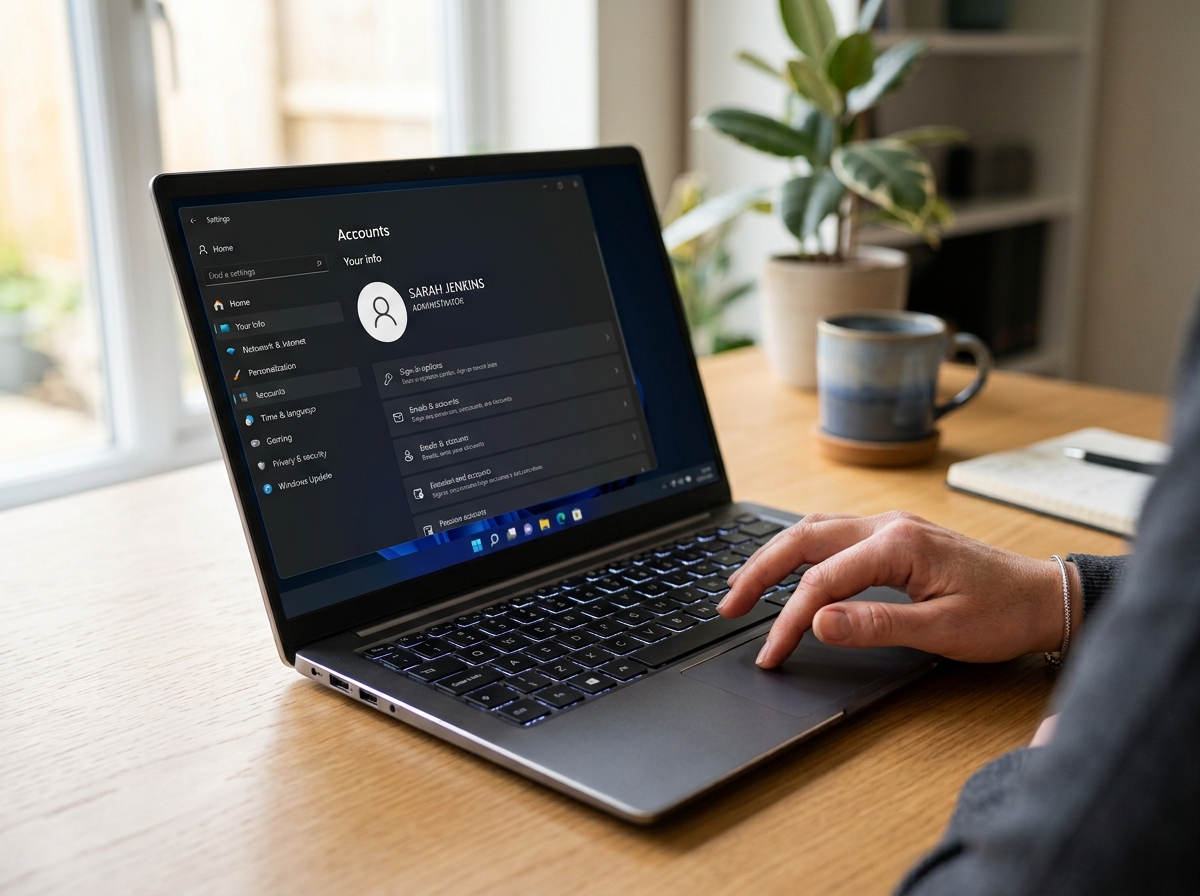
Confirm you have admin rights on the device
Most softphone installers need permission to install software system-wide. On Windows, check via Settings > Accounts > Your Info (it should say "Administrator" under your account name). On Mac, check via System Settings > Users & Groups. If you're not an admin, ask your IT support to install it or grant temporary permission.
-
2
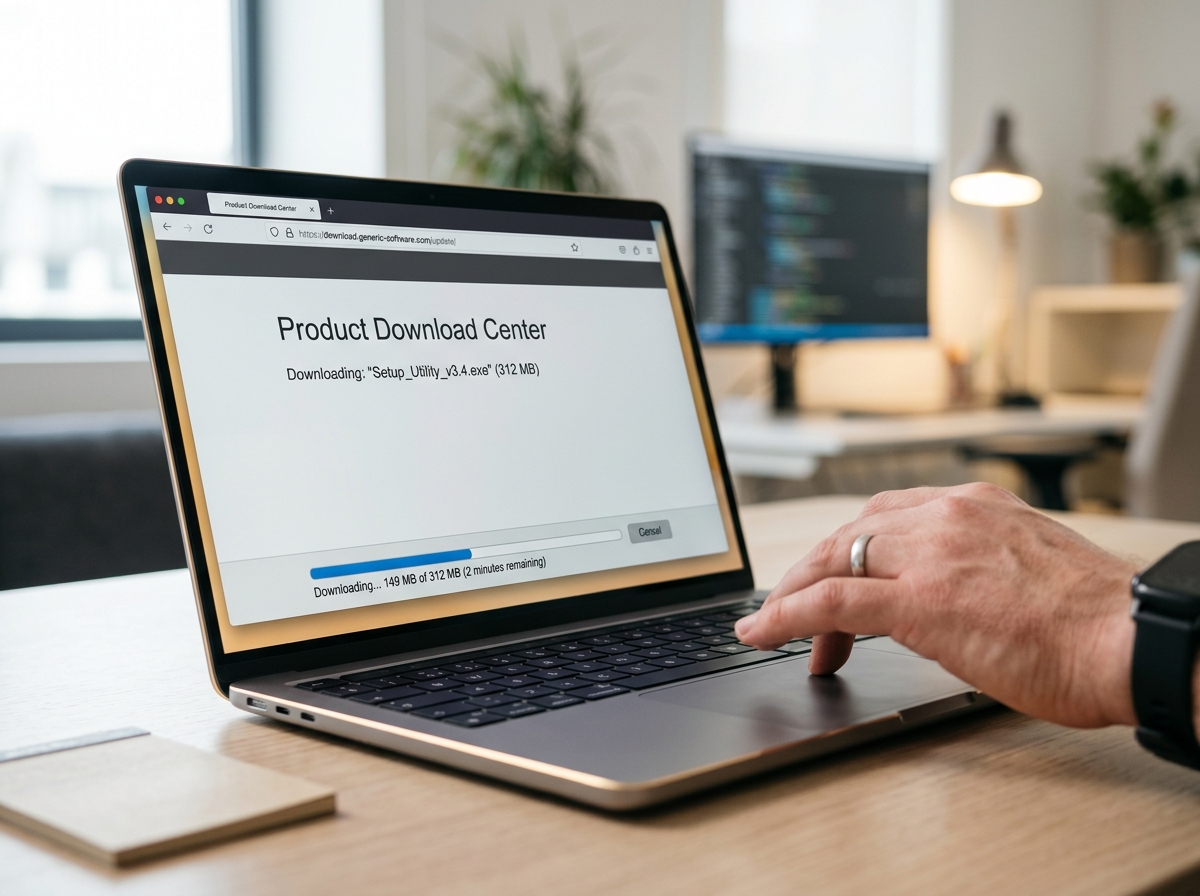
Download the installer from your provider
Your VoIP provider will give you a direct download link or point you to their app's official page — always download directly from the provider rather than a third-party site.
-
3
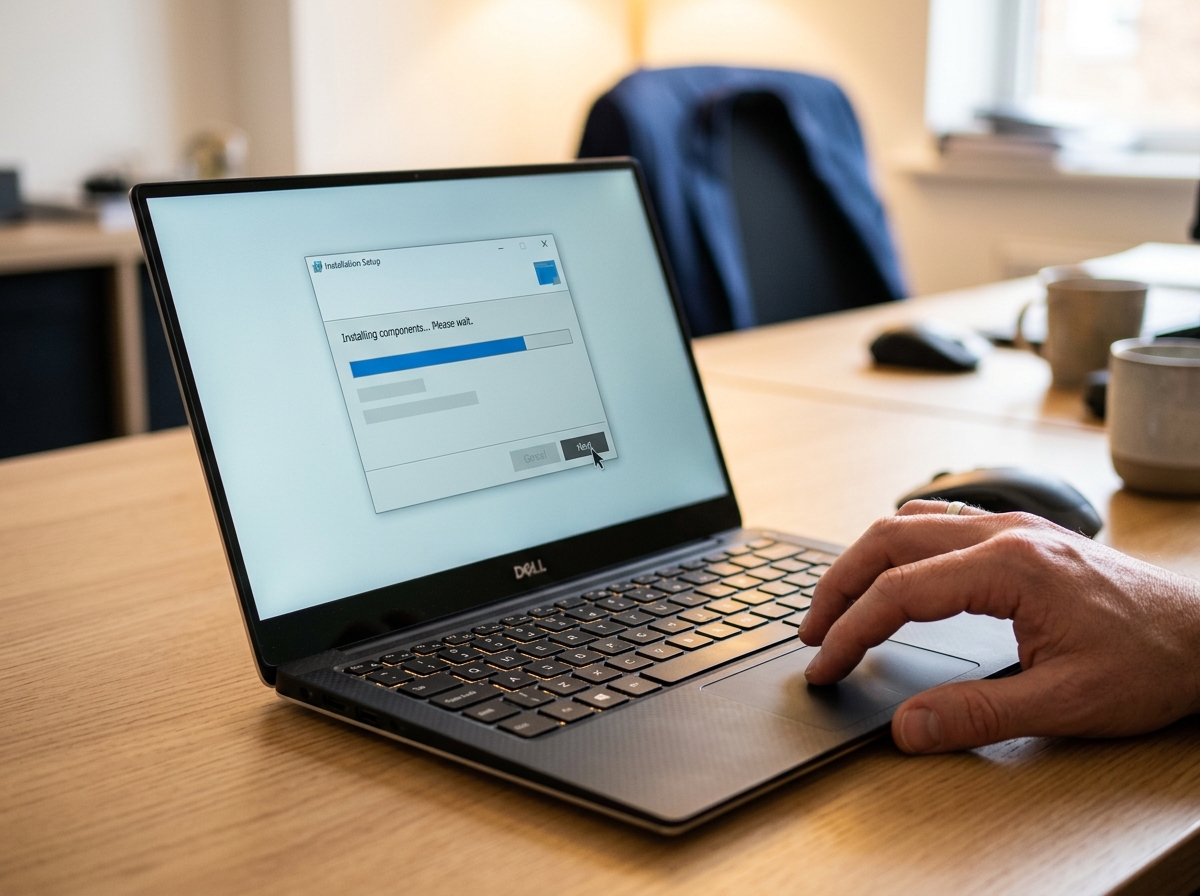
Run the installer
Open the downloaded file and follow the prompts. You may see a Windows or Mac security prompt asking to confirm the install — this is where admin rights are actually used.
-
4

Sign in with your extension details
Open the app and sign in using the extension number, username, or credentials provided by your VoIP provider or IT team.
-
5
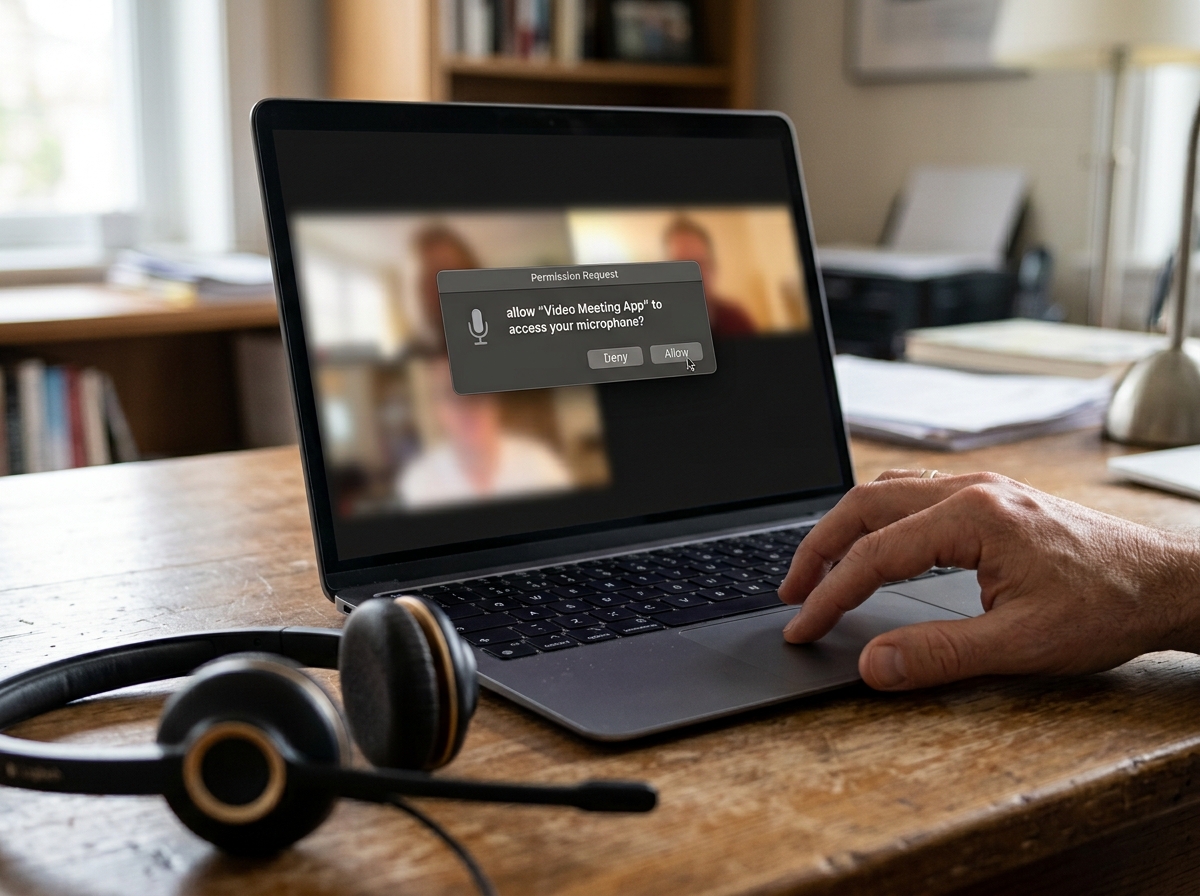
Grant microphone permissions
Your operating system will ask if the app can access your microphone (and sometimes camera, for video calling) — this must be allowed for calls to work.
-
6
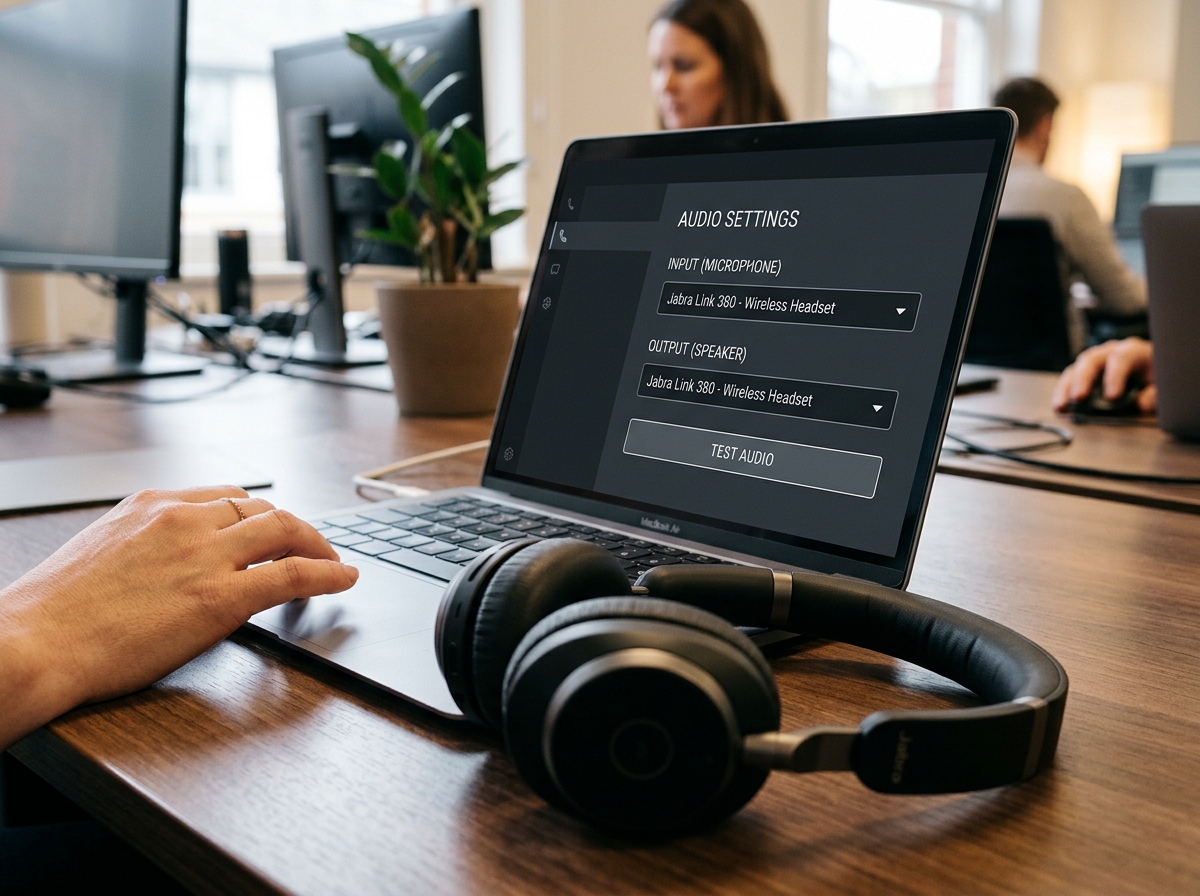
Select your audio devices
In the app's settings, choose your headset (or built-in mic/speakers) as the audio input and output. Most apps have a "test audio" option here — use it.
-
7

Make a test call
Call a colleague or a known test number to confirm both audio directions work clearly before relying on it for real business calls.
How-To: Installing a Softphone on Mobile
Mobile softphones let staff take business calls on iOS or Android without exposing their personal number. Setup is quick, and the process is very similar across most providers.
Before You Start
- Your extension number and login details from your VoIP provider
- A stable Wi-Fi or mobile data connection
- Enough free storage space for the app
- Note: on company-managed phones, a Mobile Device Management (MDM) profile may restrict app installs — check with IT first if the app store is blocked
-
1
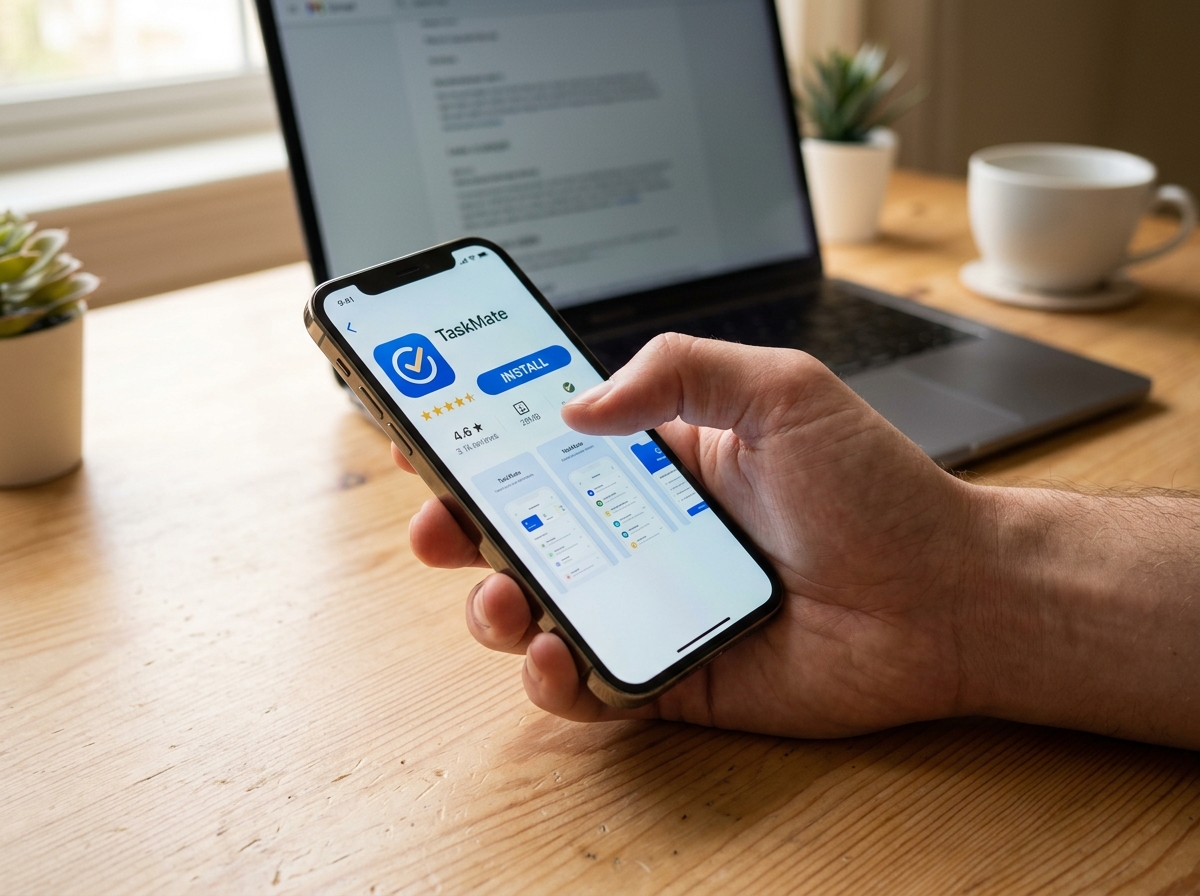
Download the app from your provider
Search for your VoIP provider's official app in the Apple App Store or Google Play Store, and confirm it's published by the correct company before installing.
-
2
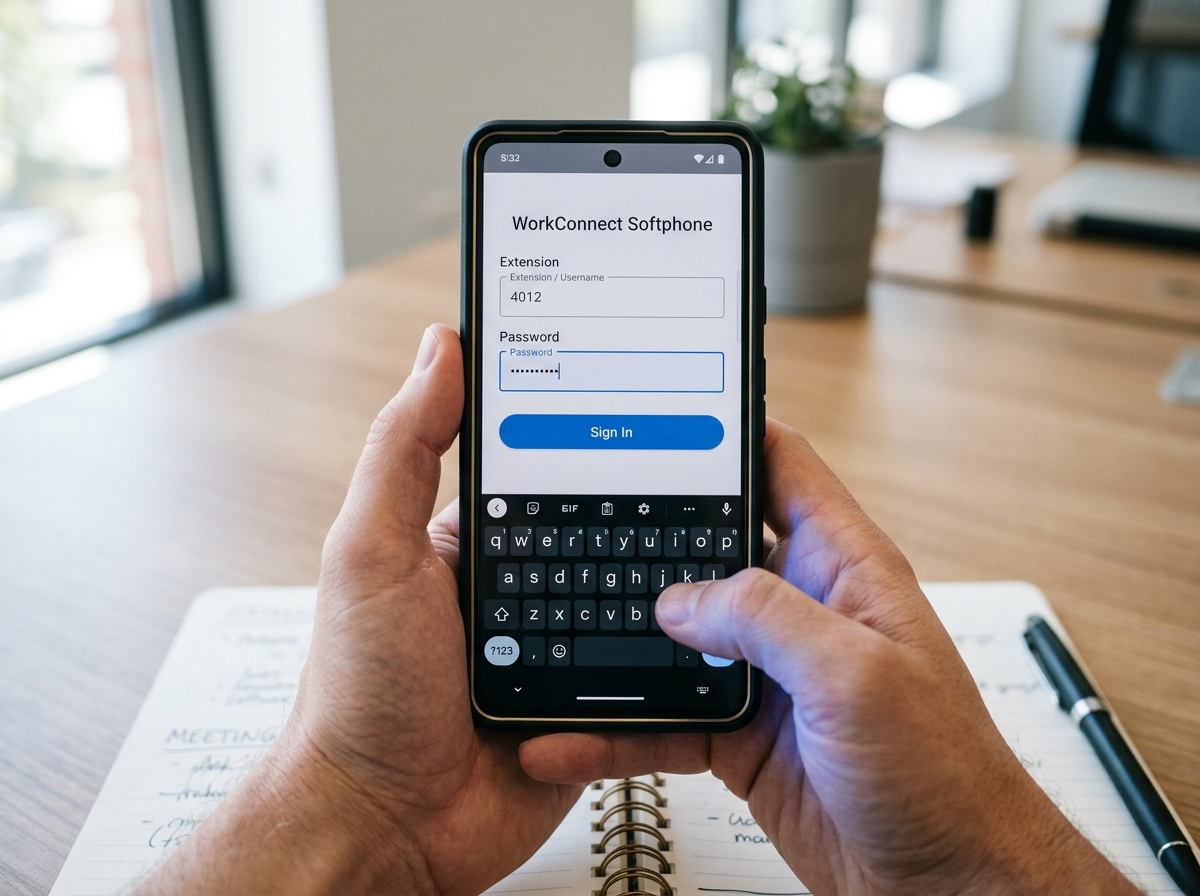
Sign in with your extension details
Open the app and log in using the extension number, username, or credentials provided by your VoIP provider or IT team — the same details used for desktop.
-
3
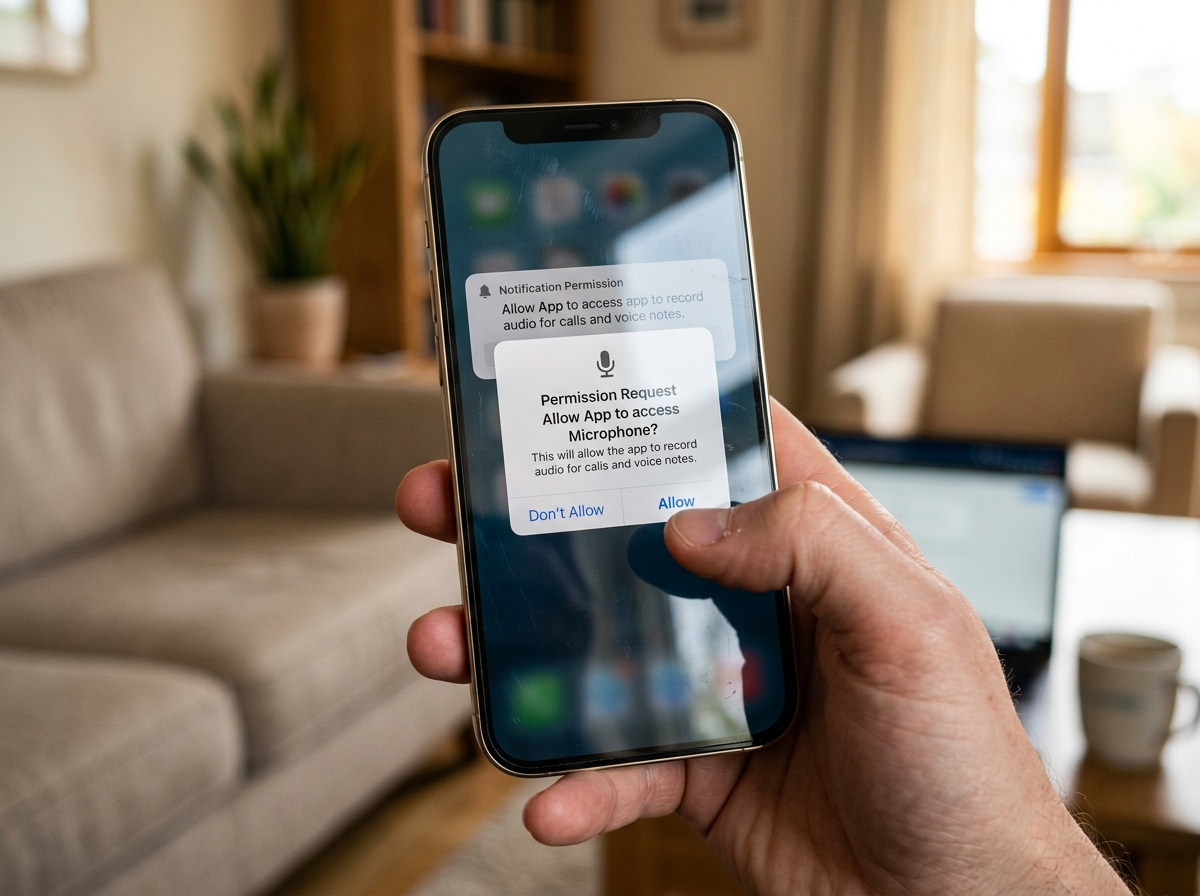
Allow the required permissions
Grant microphone access when prompted, and allow notifications so you don't miss incoming calls while the app is in the background.
-
4
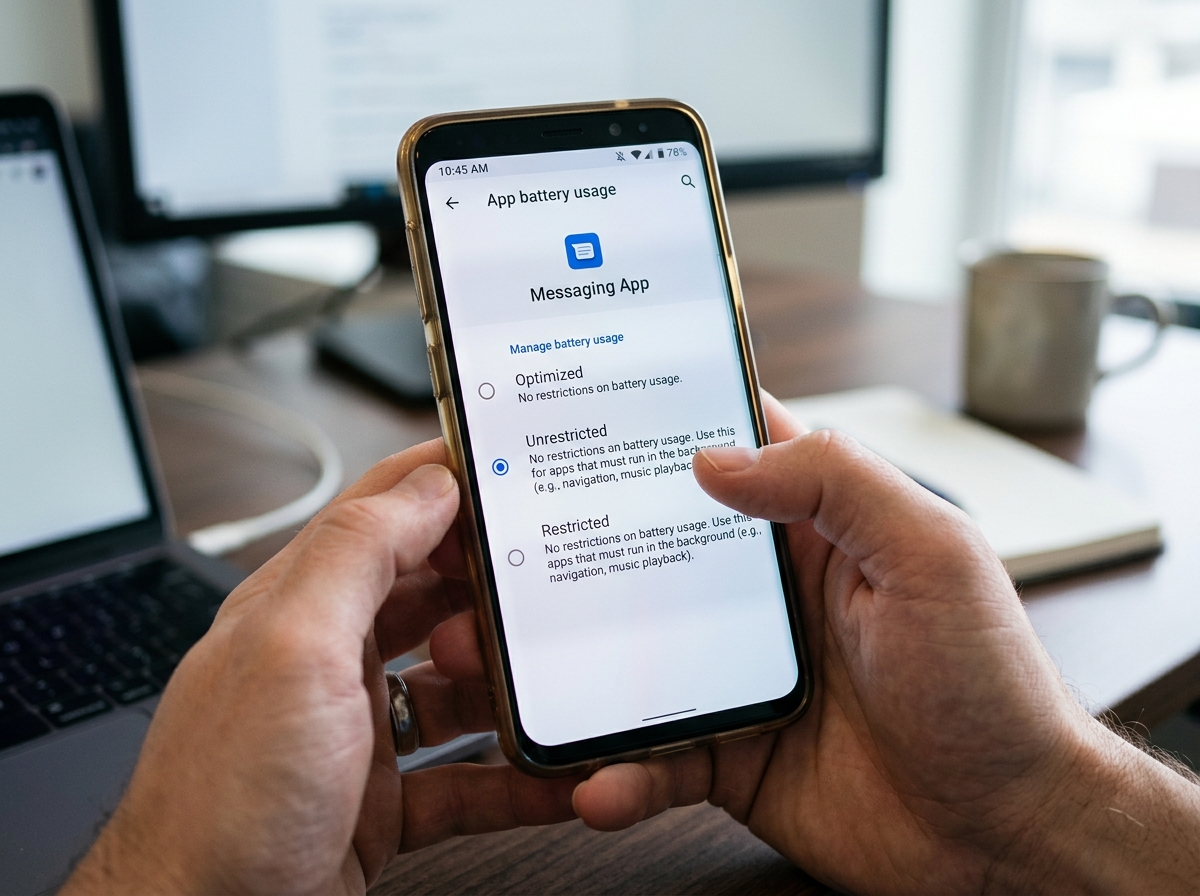
Disable battery optimisation for the app (Android)
Android phones often "sleep" background apps to save battery, which can stop calls arriving. In Settings > Apps > [Softphone app] > Battery, choose "Unrestricted" or "Don't optimise" so it stays reachable.
-
5
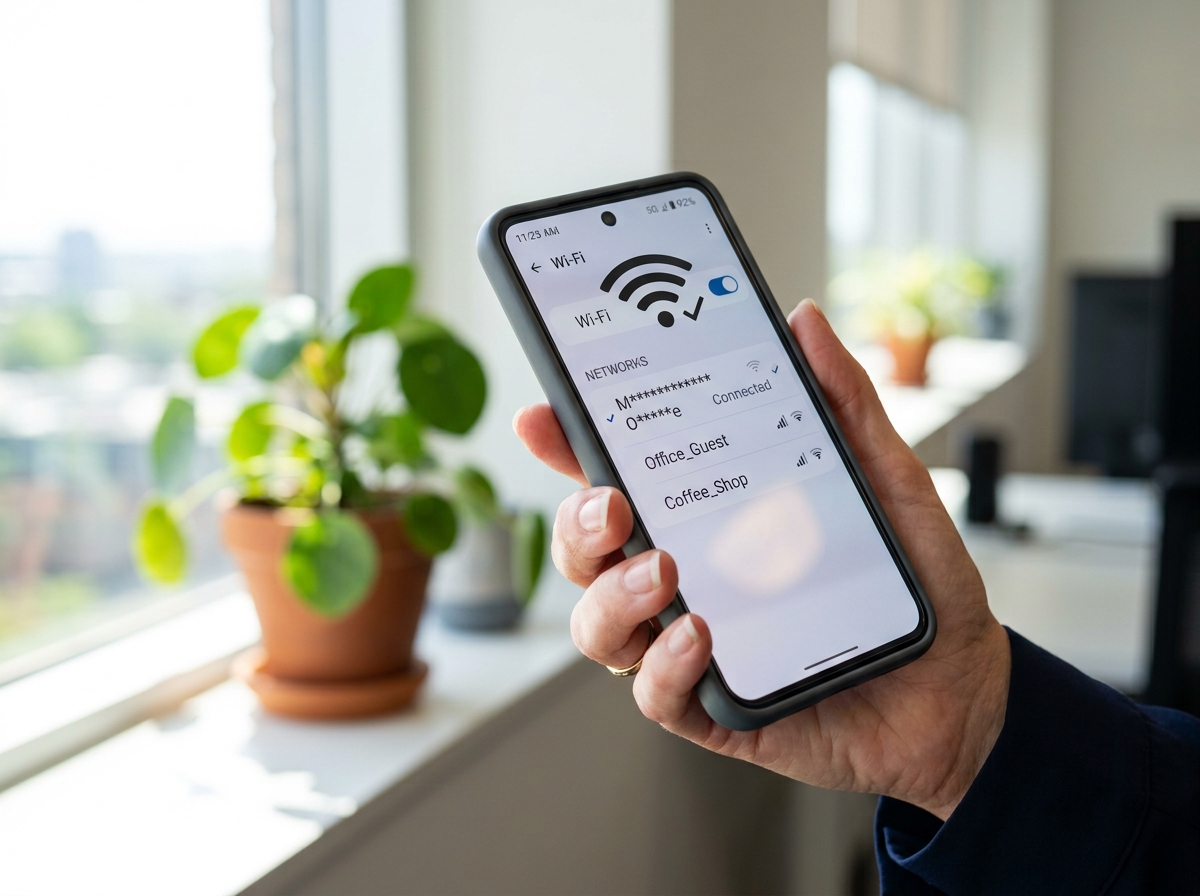
Confirm your connection quality
Check you have strong Wi-Fi signal or a good mobile data connection before relying on the app — call quality on VoIP depends entirely on the connection underneath it.
-
6

Make a test call
Call a colleague or known test number to confirm audio works clearly in both directions, and that incoming calls actually ring and notify you properly.
Common Softphone Issues & Fixes
Most softphone problems fall into a handful of well-known categories. Here's how to check and fix the most common ones yourself before calling for support.
"I can't install the app" — admin rights
By far the most common blocker. Business laptops are often locked down so only an IT-managed "administrator" account can install new software. Before attempting install:
- On Windows: Settings > Accounts > Your Info — check it says "Administrator" beneath your name
- On Mac: System Settings > Users & Groups — check your account type is "Admin"
- If you're not an admin, ask your IT support to either install the app remotely or temporarily grant admin rights
- On company-managed phones, check with IT whether an MDM (Mobile Device Management) profile is blocking app installs
No sound, or can't hear the other person
Check the correct microphone and speaker/headset are selected in the app's audio settings — it's easy for a laptop's built-in mic to be selected instead of a USB or Bluetooth headset. Also check the device's own volume and mute settings, and confirm microphone permission has actually been granted to the app.
Choppy, robotic, or delayed audio
This is almost always a connection quality issue, not a softphone fault. Check your internet connection speed and stability, close other bandwidth-heavy applications (large downloads, video streaming), and where possible use a wired connection instead of Wi-Fi for the most consistent results.
Not receiving incoming calls
Confirm the app has notification permissions enabled, and on Android, check battery optimisation isn't set to restrict the app in the background. On iOS, confirm the app isn't set to "Low Power Mode" restricted, and check Do Not Disturb settings aren't silently blocking calls.
App won't stay signed in
Repeated sign-outs are often caused by an unstable internet connection or the device going to sleep and closing the app's background connection. Check your Wi-Fi stability, and on mobile, ensure the app is excluded from any aggressive battery-saving or "app hibernation" settings.
Firewall or network blocking the app
Some business networks block the specific ports or protocols VoIP apps need to function. If the app installs but simply won't connect or make calls at all, this is worth checking with whoever manages your office network or router firewall settings.
Types of Business Phone Systems
"VoIP" covers several different ways a phone system can actually be set up. Here's how the main options differ.
Fully Cloud-Hosted
The entire phone system is hosted and managed by your provider off-site. You just need internet connectivity and compatible handsets or softphones — no on-site hardware to maintain.
Hardware On-Site
A physical PBX unit is installed and managed on your premises. Offers more control and customisation, but requires upfront hardware investment and ongoing in-house or contracted maintenance.
Mix of Both
Combines on-premise hardware with cloud-based features and connectivity, often used by businesses transitioning away from legacy systems without replacing everything at once.
Connect Existing Hardware
Replaces traditional phone lines with an internet-based connection into an existing on-premise PBX, letting businesses keep their current hardware while dropping the cost of physical lines.
Choosing the Right Hardware
Softphones aren't the only option — most businesses use a mix of hardware alongside them, depending on the role and workspace.
Desk Phones
Traditional-feeling handsets that connect via Ethernet (often with PoE, so no separate power supply is needed). Best for reception desks, dedicated workstations, and anyone who prefers a physical handset over a headset.
Conference Phones
Speakerphone units designed for meeting rooms, with multiple microphones to pick up voices around a table clearly. Some include built-in video conferencing camera integration for hybrid meetings.
USB & Bluetooth Headsets
The standard companion to desktop and mobile softphones. USB headsets are simple and reliable for fixed desks; Bluetooth headsets suit staff who move around while on calls.
DECT Cordless Handsets
Cordless handsets connected to a base station, giving mobility around a single building without relying on Wi-Fi. A good middle ground for staff who need to move but don't need a full mobile app.
Planning by Business Type
Every business has different calling needs. Expand the section below that matches yours for tailored planning guidance.
A small office of up to around 10 staff usually does well with a fully hosted cloud PBX and a mix of softphones and one or two desk phones for reception. Low upfront cost and quick to scale as headcount grows.
Retail sites typically need one or two fixed wired handsets at the till or back office, often paired with a mobile softphone app for the manager to stay reachable while on the shop floor.
Warehouse teams often benefit from DECT cordless handsets for supervisors moving around the floor, combined with a wired desk phone in the office area where call quality matters most.
Larger, multi-floor offices usually benefit from a hosted or hybrid PBX with department-level call routing, wired desk phones at fixed desks, and conference phones in meeting rooms on each floor.
Distributed teams rely most heavily on desktop and mobile softphones, since staff need their business number reachable from wherever they're working. A hosted cloud PBX is almost always the right fit here.
Common Pitfalls to Avoid
A VoIP rollout usually goes smoothly, but here are the mistakes we see most often when businesses switch.
Not checking internet capacity first
Every simultaneous call needs bandwidth. Rolling out VoIP without checking your connection can handle peak call volumes alongside normal internet use leads to poor call quality for everyone.
Relying on Wi-Fi for fixed desk phones
Desk phones and busy workstations benefit from a wired connection. Wi-Fi introduces variables that cause avoidable call quality issues for staff who never move from their desk.
Skipping admin rights checks before rollout
Rolling out softphones to a whole team without confirming who has admin rights on their device leads to installation delays and support tickets on day one. Check this in advance.
No fallback if the internet goes down
Since VoIP relies entirely on internet connectivity, a lost connection means lost calls. Consider a backup connection (like 4G/5G failover) for businesses where being reachable is critical.
Ignoring battery optimisation on mobile
Staff using mobile softphones often miss calls simply because their phone's battery settings are silently closing the app in the background. This is one of the most common (and easily fixed) issues.
Not testing before going live
Switching over an entire business phone system without a test period first means any issues are discovered in front of real customers, rather than caught and fixed beforehand.
Troubleshooting Call Problems
Most VoIP call issues fall into a handful of common patterns. Work through these before assuming the worst.
Calls won't connect at all
Confirm your internet connection is working, and that the softphone app or handset shows as "registered" or "online" rather than disconnected.
Restart the app or handset, and try connecting from a different network (e.g. mobile data) to check whether the issue is with your device or your network.
If the device is registered but calls still won't connect, your network firewall may be blocking the required ports — this needs checking by whoever manages your router or network.
Choppy or robotic-sounding audio
Check what else is using your internet connection at the same time — large downloads, video streaming, or video calls on other devices can all affect call quality.
Switch from Wi-Fi to a wired connection if possible, and close any unnecessary applications using bandwidth in the background.
If audio quality is still poor on a quiet, wired connection, your internet provider or VoIP provider may need to investigate call routing or bandwidth allocation.
One-way audio (you can hear them, they can't hear you)
Check the correct microphone is selected in the app's audio settings, and that it isn't muted at the device or hardware level (some headsets have a physical mute button).
Test the microphone in another app (like a voice recorder) to confirm it works at all, then reselect it within the softphone's settings.
If the microphone works elsewhere but not in the softphone, this is often a network configuration issue (NAT/firewall related) needing an engineer's input.
Calls randomly drop mid-conversation
Check for a stable internet connection throughout the call — intermittent Wi-Fi drops or a device moving out of range are common causes.
If using mobile, check the app isn't being closed by battery optimisation settings, and if using Wi-Fi, try moving closer to the router or switching to a wired connection.
Frequent unexplained drops on a stable, wired connection can indicate a router or firewall configuration issue that needs a network specialist to diagnose properly.

Watch & Learn
See It Explained on YouTube
Prefer to watch than read? Our YouTube channel covers softphone setup, hosted vs on-premise systems, and how to avoid the most common VoIP headaches — no jargon, no sales pitch.
Visit A2B Network Hub on YouTubeGet Your Business Calling Sorted
Free, impartial advice on VoIP, softphones, and phone systems for your business — no sales pitch, just straight answers.